A textbook page
Photograph a page of a coursebook or a reader you’re working through, and hear the dialogue or the text before you read it yourself.
Learning English? Photograph a page of your textbook, a worksheet, a sign or a menu, and Outloud Reader reads the English aloud in a natural voice, highlighting each phrase as it’s spoken, so you hear how the words sound while you see them.


Free to download · iOS & Android · No sign-up
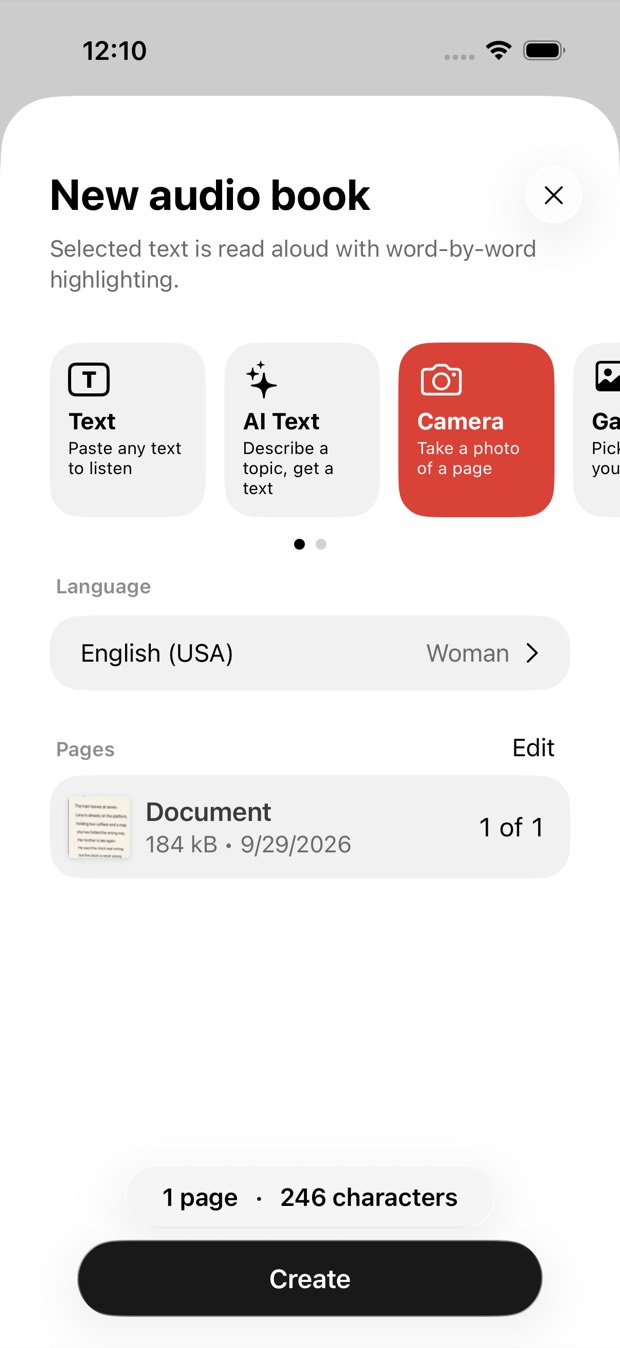
To hear English text from a photo, start a new book in Outloud Reader, choose Camera (or Gallery for a photo or screenshot you already have), choose English (US or UK) and tap Create. The English is read aloud in a natural voice, each phrase highlighted, at any speed from 0.5× to 1.25×.
Any English you can see, you can hear.
Photograph a page of a coursebook or a reader you’re working through, and hear the dialogue or the text before you read it yourself.
Hear an exercise text, an article from class or a handout read aloud, and listen again until you catch every word.
English on a street sign, a menu or a packet: photograph it and hear how it is pronounced.
No typing and no copying: the English text is recognised for you.
Start a new book and choose Camera, or Gallery to pick photos and screenshots you already have. The app finds the page in each photo and crops it.
Choose English (US or UK) to hear the text as it’s printed, then a woman’s or a man’s voice.
Tap Create. The book plays with each phrase highlighted as it’s read, and stays in your library to play again.
Once the page is a book, you decide how to listen:
Printed text reads best. Clear handwriting often works; messy handwriting may not. The app reads the words in a photo: it doesn’t describe a picture, and it doesn’t listen to you or score your pronunciation.
Get the appNot sure what a page says? Choose your own language when you make the book and it’s translated in natural sentences before it’s read. Then make it again in English to practise.
The photo is read and voiced online, so making a book needs the internet. Once it’s made, it plays offline, with the screen off.
Each photo uses one page of your balance. Pages come in packs that never expire, or with Premium, weekly or monthly; prices are shown in the app.
Your first 2 pages are free.
Outloud Reader for iOS and Android. Your first 2 pages are free.
Free to download · iOS & Android · No sign-up
Something else? Write to support@outloudreader.app and a person will answer.
Yes. Photograph the page, or pick a photo or screenshot from your gallery: the English text is recognised and read aloud with each phrase highlighted. Choose English as the language and it’s read exactly as printed.
You choose: English (US) or English (UK), each with a woman’s and a man’s voice.
Yes. Any speed from 0.5× to 1.25×, and each sentence repeated up to five times. You can also hide the text and just listen.
It’s an app for iPhone, iPad and Android, not a website. It’s free to download, a few pages are free to try, and playing a finished book again costs nothing. More pages come in packs or with Premium; prices are shown in the app.